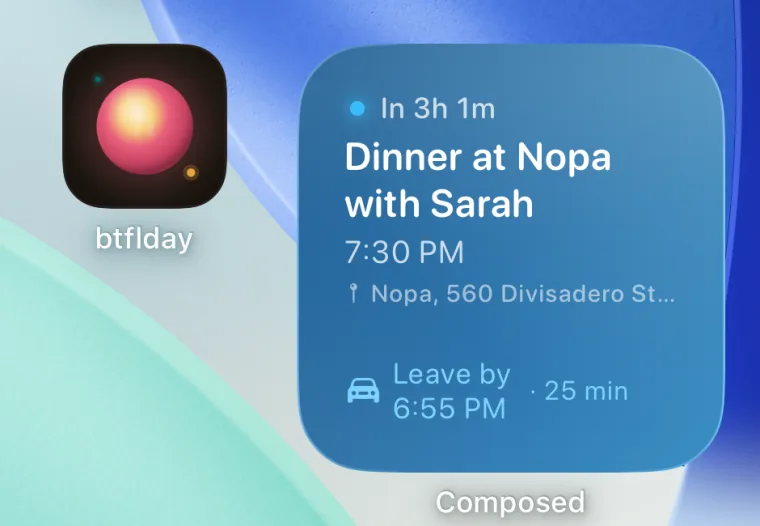
To get your iPhone to tell you when to leave, open Settings, tap Apps, then Calendar, tap Default Alert Times, and turn on Time to Leave. Then give each event its full address in the Location field. When an event has an address, Apple says Calendar uses Apple Maps to look up traffic conditions and transit options to tell you when it’s time to leave.
The address is the part most people miss. Below is what to check when the alert doesn’t come, and how to get a leave-by time for every plan without typing addresses into your calendar.
Turn on Time to Leave
- Open Settings, tap Apps, then Calendar.
- Tap Default Alert Times.
- Turn on Time to Leave.
Give the event a real address
Time to Leave needs somewhere to go. Open the event, tap Edit, tap Location, and enter the full street address, or pick the place from the suggestions. “Dentist” or “Mom’s” isn’t enough: with no address, there’s nothing to measure the drive against.
Events that arrive from an invite or another calendar often have no address, or a room name or video link in the Location field. Those won’t get a time-to-leave alert. If the address is only in a screenshot or a booking email, see how to turn a screenshot into a calendar event.
Let Calendar use your location
The drive is worked out from where you are, so Calendar needs your location. Open Settings, tap Privacy & Security, then Location Services, make sure it’s on, and check that Calendar is allowed.
Make sure Calendar alerts reach you
A time-to-leave alert is a Calendar notification, so the usual settings apply: Settings, Notifications, Calendar, Allow Notifications on. If a Focus is on, Calendar has to be allowed through it. See how to fix iPhone calendar alerts not working for every check.
Why the iPhone still makes you late
The Calendar app’s alert works when every event has a clean address, and most calendars don’t. The appointment from the doctor’s office says “Main Street Clinic”. The dinner invite says “Nopa”. The school event says “Gym”.
Composed was built around the leave-by time. You say or type the plan the way you’d say it, “grab Sam from Penn Station tonight at 9:30”, and it finds the place for you to confirm. Then it works out the drive from where you actually are, with traffic, and shows Leave by 8:59 PM · 21 min drive right on the plan. When it’s time, it tells you. With location access set to Always, if you’ve moved and the leave-by time has already passed, it tells you right away, with the drive time. Events already on your Apple or Google calendar get a leave-by time too, whenever their location can be matched to a real place. Flights get the airport buffer added, so you’re not told to leave 30 minutes before takeoff. And for the ones you can’t miss, Remind me with an alarm rings like the Clock app’s alarm, through Silent mode and Focus, on iPhones with iOS 26.
See how Composed works, screen by screen.
Sources
- Apple iPhone User Guide, Create and edit events in Calendar on iPhone and Change Calendar settings on iPhone, read 2026-11-19.
Frequently asked questions
- How do I get my iPhone to tell me when to leave?
- Turn on Time to Leave under Settings > Apps > Calendar > Default Alert Times, and give each event its full address in the Location field. Calendar then uses Apple Maps traffic to alert you when it's time to go.
- Why isn't my iPhone giving me Time to Leave alerts?
- Usually the event has no real address, Time to Leave is off, Calendar isn't allowed to use your location, or Calendar notifications are off or held back by a Focus.
- Does Time to Leave use traffic?
- Yes. Apple says that when an event has an address, Calendar uses Apple Maps to look up traffic conditions and transit options to tell you when it's time to leave.
- Can my iPhone tell me when to leave for events from Google Calendar?
- The Calendar app can alert you for any event with a full address, including Google events synced to the iPhone. Many invites have no address, so they get no alert. Composed matches imported events to real places and gives them a leave-by time when it can.
- Is there an app that tells you when to leave from where you are?
- Composed works out the drive from where you are, with traffic, shows the leave-by time on each plan and reminds you when it's time to go, including for events already on your Apple or Google calendar.