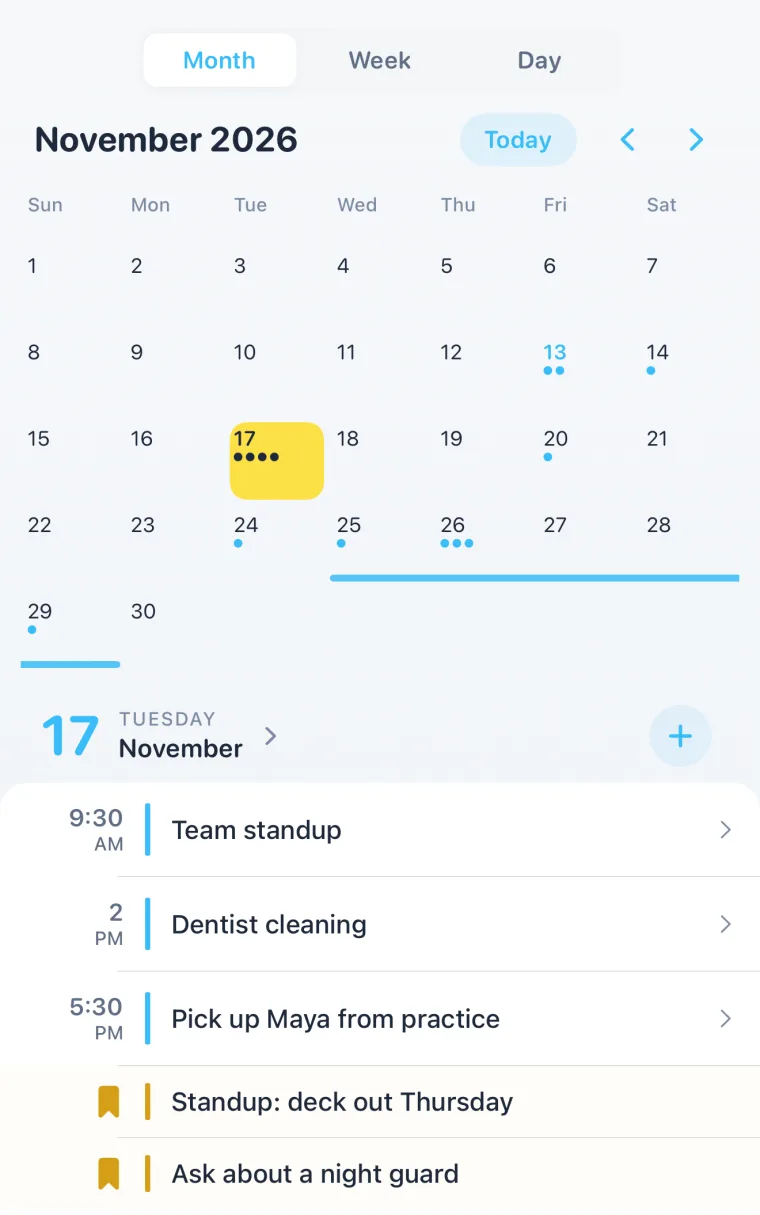
To turn a screenshot into a calendar event on iPhone, take the screenshot by pressing the side button and volume up together. If your iPhone has Apple Intelligence, visual intelligence tools appear at the bottom of the screen: when the picture shows a future date, tap Add to Calendar, then Create Event (or Edit first to fix the details). The event goes straight into the Calendar app.
If your iPhone doesn’t have Apple Intelligence, or the picture is a hotel booking or a flight, there’s a second way below.
With visual intelligence (iPhones with Apple Intelligence)
From something on your screen
- Press the side button and volume up at the same time to take a screenshot.
- Visual intelligence tools appear at the bottom of the screen.
- If the picture has a date in the future, tap Add to Calendar.
- Tap Create Event. To change the title, time or place first, tap Edit, then Done.
From a poster or flyer in front of you
Open visual intelligence with the Camera Control (or, on iPhone 17e, 16e and 15 Pro, from the Action button, Lock Screen or Control Center), point the camera at the poster, and tap Add to Calendar, then Create Event.
What you need: Apple Intelligence turned on and the latest iOS. Apple notes it isn’t available on every iPhone model, language or region.
Without Apple Intelligence
Open the screenshot next to the Calendar app and copy the details by hand: in Calendar, tap Add, type the title, set the date and time, and paste the address into Location so you can get a time-to-leave alert.
Bookings and flights need more than a date
A poster has one date. A rental booking has a check-in, a checkout, an address, a confirmation number and a door code. A flight has a departure in one time zone and an arrival in another. One calendar event with a title and a time leaves most of that behind, in the screenshot you’ll be scrolling for at the door.
How Composed does it
In Composed, you pick the screenshot from your photos on the Add screen. Composed reads it and fills in the event for you to review and confirm: a hotel or rental becomes a stay with its dates, address, confirmation number and codes; a flight confirmation becomes the trip, with check-in and boarding reminders from what it found; an event poster becomes the event at the right place. It works on any iPhone that runs Composed, no Apple Intelligence needed.
Here it is with a rental booking, in 44 seconds:
See how Composed works, screen by screen.
Sources
- Apple iPhone User Guide (iOS 26), Use visual intelligence on iPhone and Create and edit events in Calendar on iPhone, read 2026-11-19.
Frequently asked questions
- How do I add an event to my calendar from a screenshot on iPhone?
- Take a screenshot with the side button and volume up. On an iPhone with Apple Intelligence, tap Add to Calendar in the visual intelligence tools, then Create Event. Without Apple Intelligence, add the event in Calendar by hand, or use an app like Composed that reads screenshots.
- Why don't I see Add to Calendar after taking a screenshot?
- Visual intelligence needs Apple Intelligence turned on, the latest iOS and a supported iPhone, language and region. It also only offers Add to Calendar when the picture shows a date in the future.
- Can I add an event from a poster or flyer with my iPhone camera?
- Yes, with visual intelligence. Open it with the Camera Control (or the Action button, Lock Screen or Control Center on iPhone 17e, 16e and 15 Pro), point at the poster and tap Add to Calendar.
- Can my iPhone turn a hotel or flight confirmation screenshot into a trip?
- Composed does: pick the screenshot on its Add screen and it fills in the stay or the flight for you to check, with the dates, address, confirmation number and codes, plus check-in, boarding or checkout reminders.