If Google Calendar isn’t syncing to your iPhone, open Settings, tap Apps, then Calendar, then Calendar Accounts. If your Google account isn’t listed, tap Add Account, choose Google and sign in. If it is listed, tap it and make sure Calendars is turned on. Then open the Calendar app, tap Calendars at the bottom, and check that your Google calendars are ticked.
That fixes most cases. If events are still missing, work down the list below. Each fix is one thing to check, in the order that usually finds it fastest.
Make sure the Google account is on the iPhone, with Calendars on
The iPhone’s Calendar app only shows Google events if your Google account is added to the phone and its calendars are switched on.
- Open Settings, tap Apps, then Calendar.
- Tap Calendar Accounts.
- If you don’t see your Google account, tap Add Account, choose Google, and sign in.
- If you do see it, tap it and turn on Calendars.
Google’s own help notes that adding the account syncs email, contacts and calendars, and that you can turn off the parts you don’t want and keep just Calendars.
Tick the calendars in the Calendar app
An account can be connected while its calendars are hidden. Open the Calendar app, tap Calendars at the bottom of the screen, and make sure each Google calendar under your account has a tick. A calendar without a tick doesn’t show in the app.
Shared or extra Google calendars missing? Choose them in Google
This is the one that catches most people. Your main Google calendar comes over, but a calendar someone shared with you, or a second calendar you made, never appears.
Google decides which of your calendars it sends to Apple Calendar. To change it:
- On a computer, go to google.com/calendar/syncselect and sign in with the same Google account.
- Tick each calendar you want on your iPhone, including the shared ones.
- Save, then give your iPhone a few minutes to fetch the change.
If you ever used the Delegation setting in Apple Calendar on a Mac to see shared Google calendars, Google says to turn that off for this sync to work.
Events you add on iPhone don’t show up in Google
When you add an event on the iPhone, it goes to whichever calendar is your default. On many iPhones that’s an iCloud calendar, so the event never reaches Google.
- To fix it for every new event: open Settings, tap Apps, Calendar, then Default Calendar, and pick your Google calendar.
- To fix one event: open it, tap Edit, tap Calendar, and move it to your Google calendar.
Changes take ages to appear
An account that doesn’t push changes to the phone gets them on a fetch schedule instead. Apple notes that when Fetch New Data is set to Automatically, new data only downloads while your iPhone is charging and on Wi-Fi, which can mean a change you made on your laptop doesn’t show on your phone until tonight.
Open Settings, tap Apps, Calendar, Calendar Accounts, then Fetch New Data, and pick a schedule instead of Automatically.
Still nothing? Remove the Google account and add it back
Removing the account from the iPhone doesn’t delete anything from Google; your events stay in your Google account. Go to Settings, Apps, Calendar, Calendar Accounts, tap your Google account, delete it, restart the phone, then add it again as in step 1.
Why two calendars keep drifting apart
Most of us end up with two: an Apple calendar on the phone and a Google calendar from work, school or a partner. Each fix above is really about the same thing, the iPhone and Google agreeing on which calendar an event lives in.
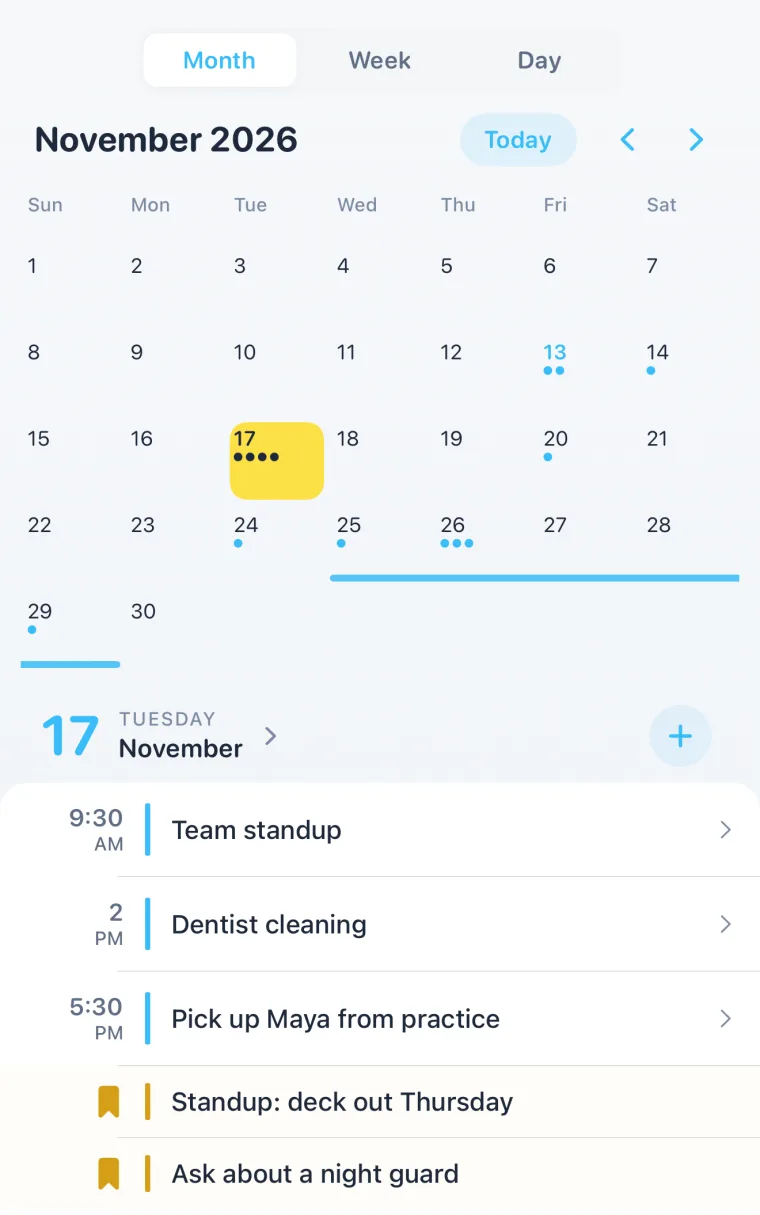
Composed takes a different route. It connects to Google Calendar directly with your Google sign-in, so it doesn’t depend on the Google account in the iPhone’s settings, and it reads your Apple calendars from the phone. Everything lands on one Today screen. Turn on Sync to Google Calendar in Composed’s settings and the plans you add in Composed go to Google too. Then it does what neither calendar does on its own: it reminds you before each plan and, for anything with an address, tells you when to leave.
See how Composed works, screen by screen.
Events there but the alerts never come? See how to fix iPhone calendar alerts not working.
Sources
- Google Calendar Help, Add Google Calendar events to Apple Calendar (iPhone & iPad) and (computer), read 2026-11-19.
- Apple iPhone User Guide, Change Calendar settings on iPhone and Set up mail, contacts and calendar accounts, read 2026-11-19.
Frequently asked questions
- Why are my Google Calendar events not showing on my iPhone?
- Usually the Google account isn't added to the iPhone, Calendars is turned off for it, or the calendar is hidden. Check Settings > Apps > Calendar > Calendar Accounts, turn on Calendars for your Google account, then tick its calendars under Calendars in the Calendar app.
- Why won't a shared Google calendar show up on my iPhone?
- Google only sends the calendars you choose to Apple Calendar. On a computer, open google.com/calendar/syncselect, tick the shared calendar, save, and give the iPhone a few minutes to fetch it.
- Why don't events I add on my iPhone show up in Google Calendar?
- They're going to your default calendar, which is often iCloud. Set Default Calendar to your Google calendar under Settings > Apps > Calendar, and move any existing event by editing it and changing its Calendar.
- How do I make Google Calendar sync faster on iPhone?
- Under Settings > Apps > Calendar > Calendar Accounts > Fetch New Data, choose a schedule instead of Automatically. Apple notes that Automatically only downloads new data while the iPhone is charging and on Wi-Fi.
- Will removing my Google account from the iPhone delete my events?
- No. Removing the account only takes it off the phone. Your events stay in your Google account and come back when you add it again.
- Does Composed work with Google Calendar?
- Yes. Composed connects to Google Calendar with your Google sign-in and reads your Apple calendars too, so both show in one place. With Sync to Google Calendar on, plans you add in Composed go to Google as well.